
Configuring VPN Connections
Steps to configure VPN Connections
-
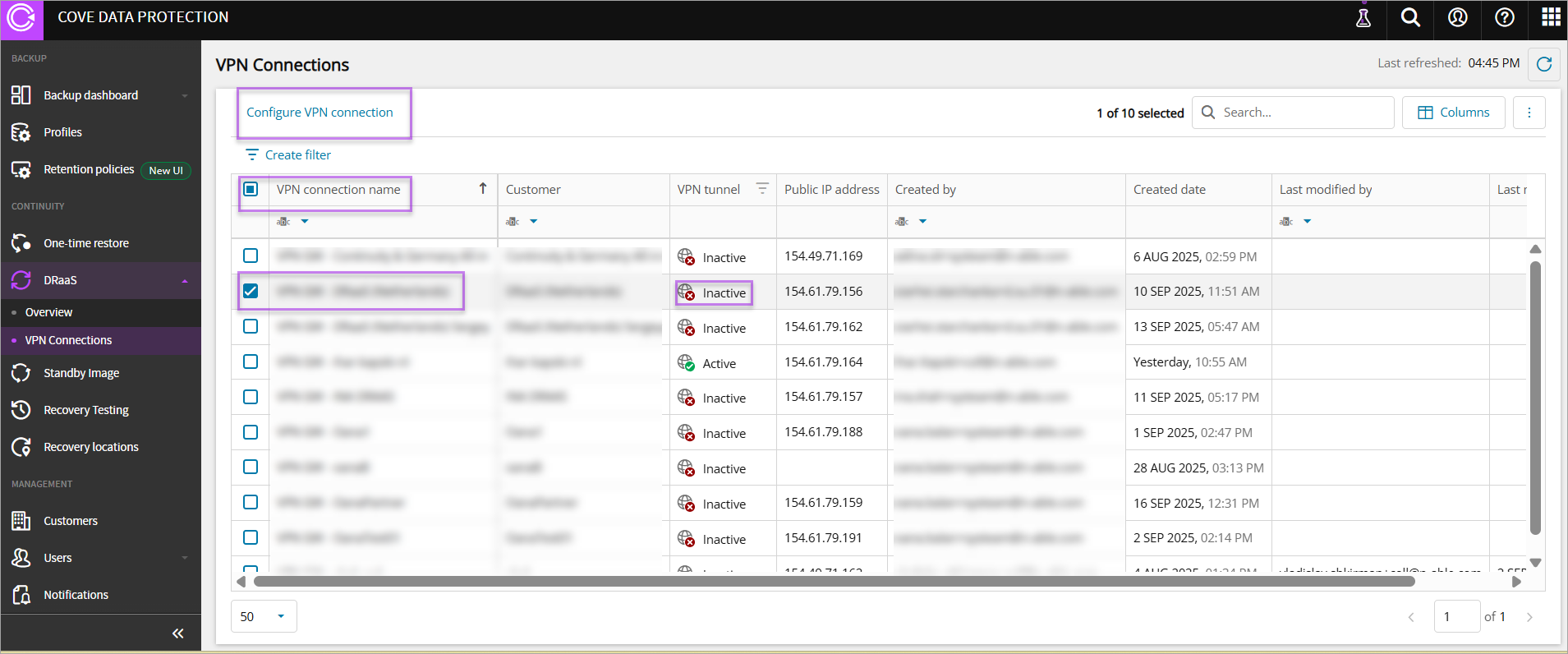
Click any specific inactive VPN under VPN connection name and then click Configure VPN connection under DRaaS -> VPN Connections
The Configure VPN connection window displays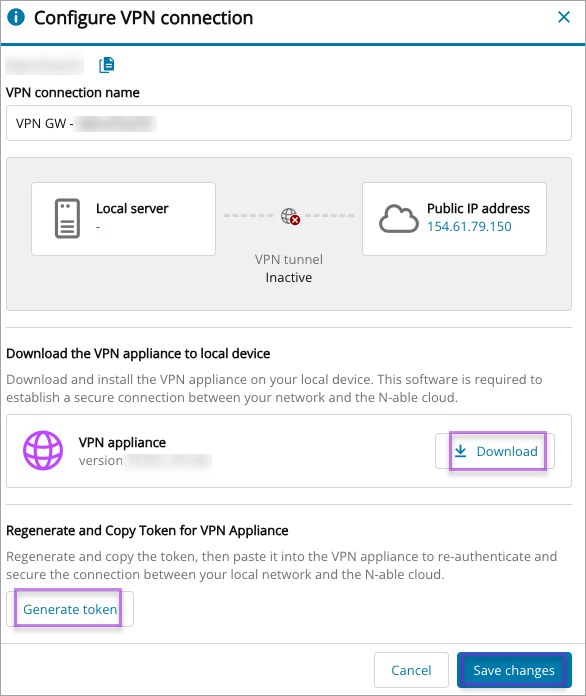
The Configure VPN connection window includes:
-
Customer: Refers to the customer name
-
VPN connection name: Refers to the VPN connection name
-
Local Server: Refers to the VPN client or VPN appliance
-
Public IP address: Refers to the VPN Gateway with the specified Public IP address
-
VPN appliance: Refers to the VPN appliance to be downloaded and installed to your local device
-
Token: Refers to the generated token to be pasted to the VPN appliance
Steps to configure VPN connection
-
Click Download in Configure VPN connection window to download the VPN appliance
A zip file downloads that includes two folders: Virtual Hard Disks containing the Virtual Machine image and Virtual Machines containing various Hyper-V virtualization files.
-
Click Generate token in Configure VPN connection window to generate the token needed for the installation of the VPN Appliance
-
Extract the files and import the entire folder to your Hyper-V environment to create the Virtual Machine
During import, make sure that the Network Connection from the dropdown should be the one corresponding to the subnet chosen when the failover was started.
-
Log in using the provided credentials
-
Run vpn_agent.run located in the vpn-agent user home folder
-
Insert the token to complete the setup, when prompted
If successful, a VPN tunnel is established. VPN connection status is changed to VPN Tunnel Active
-
It is mandatory to enable MAC address spoofing, when assigning a network adapter to the VM.
A token cannot be reused. If you lost a token or it’s expired, to generate a new one you need to go to VPN connection settings and click Generate token button.
Regenerating the token will break the VPN connection. To restore access, update your appliance with the new token.
For test failover, ensure that you use different IPs from your real production workload to avoid conflicts.
To disconnect the VPN connection, you can power off the VPN appliance on your production side, keeping it available for future recovery tests.